|
|
In a message dated 7/29/2003 7:50:42 PM Eastern Daylight Time, twjames@healed.org writes:
Lynn, I have some pix but they are all about 100 kb and I have not figured
out how to get them any smaller. Any help? TJ
On the desktop, right click the mouse. A panel will open with a small list of things you can do. Click on "NEW". Another panel will open with a list of "NEW" things you can do. Select folder and click. An icon will appear with the title "Newfolder with a number to show how many other folders are already on the desktop. For example, it may say "NEW FOLDER3, indicating there are two other folders stored on the desktop. Right click on the newfolder3 (or whatever it turns out to be) and another menu will appear with another list of things you can do. One of these is rename. Select "rename" and type a folder name for your Internet ready pictures.
Open a picture in whatever photo program you are using. Under file on the top menu, click on "Save AS" and a two window panel will open. In the top window is the current name of the picture. put the curser in that panel and left click. Change the name slightly to indicate it has been reduced for the Internet. Like, if the picture is 1flight5, make it flight5i for Internet or some such. In the lower window is a drop down list of types of picture formats, starting with whatever format the picture is now. If the picture is not in JPG format, select JPG. and then save the picture. A panel will open with a bunch of locations where pictures could be saved. The first is where the picture is now. Near the top of the list would be desktop. select desktop. Select save. A copy of the picture in JPG format, with the new name will appear on the desktop. Minimize the photo program. (click on the minus sign next to the little box in the upper right. The desktop will appear. Click and hold down, on the picture icon and drag it into the newfolder for Internet pictures. Release the left button, and you will have installed that picture in the new folder you just made up. (Now if you ruin the picture in the Internet folder, you still have a good copy of that same picture under it's original name, still in it's original format under it's original name, in it's original location).
Go back into your minimized photo program and select "get photo". A menu of locations will appear, with desktop as one option. Select desktop. A list of everything on the desktop will appear. Select the Internet picture folder you just named. It will open and show only the one picture you have added to it. Select it and in the photo program select "Get" or "OK" or whatever the command is. There is an option list in the photo program, of things you can do to a picture. Select "Internet" or "Prepare for Internet" whatever you may have like that. There may be a slide pointer, or just an amount to type in where a panel says reduce for Internet, or compress for Internet, or something like that. Select 90%, or move the slide bar to 90%, or type it in, however yours works. Select save, and the picture will be saved in the new folder on the desktop with the Internet name and it will be only 5% as big as it started.
Close or minimize the photo program. Open your Email program. Address an Email to yourself.
Attach the modified picture to your Email and send it. Open the Email and open the picture and see if it has high enough resolution. Starting at 100MEG it probably does. Send it to anyplace you like.
I know there are shortcuts that could be used here, but if you walk through this a few times until you learn what it is you are doing with each command, then a light will go on in your head, and you can see other options, that can speed things up. Lynn E. Hanover
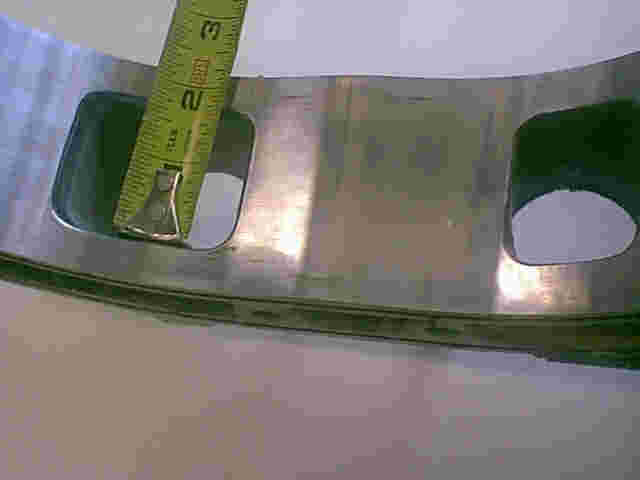
PportRotorside_WEB.jpg
|
|